FOR A LIMITED TIME - 30 DAY FREE TRIAL
IT IS TIME FOR YOU TO TAKE OWNERSHIP OF YOUR LIFE AND FIND THE RESULTS YOU TRULY DESIRE
Watch This Short Video and Read On
This community will show you
EVERYTHING YOU NEED TO
UPGRADE
I Want to PERSONALLY Work With You in this Community to find the success and happiness you desire. Most Coaches Charge $1000s for this type of program.
Was $497/Month
NOW $47/month
TODAY: FREE
($47/Month after Free Trial)
Here are some of the Results YOU will see from this community
Results YOU will See
Finally get unstuck and see the results that you have been yearning for.
Learn techniques to stay motivated even when facing challenges or setbacks.
Tap into your inner drive to consistently take action towards your goals.
Achieve success with less stress, more clarity, and greater ease.
Discover strategies to increase your income, reduce debt, and build wealth.
Overcome limiting beliefs around money that have been holding you back.
Build the habits that successful entrepreneurs and leaders swear by.
Create consistent momentum toward your personal and professional goals.
Enhance your productivity and time management to achieve more with less stress.
And more to come
When you join NOW, you also get a copy of
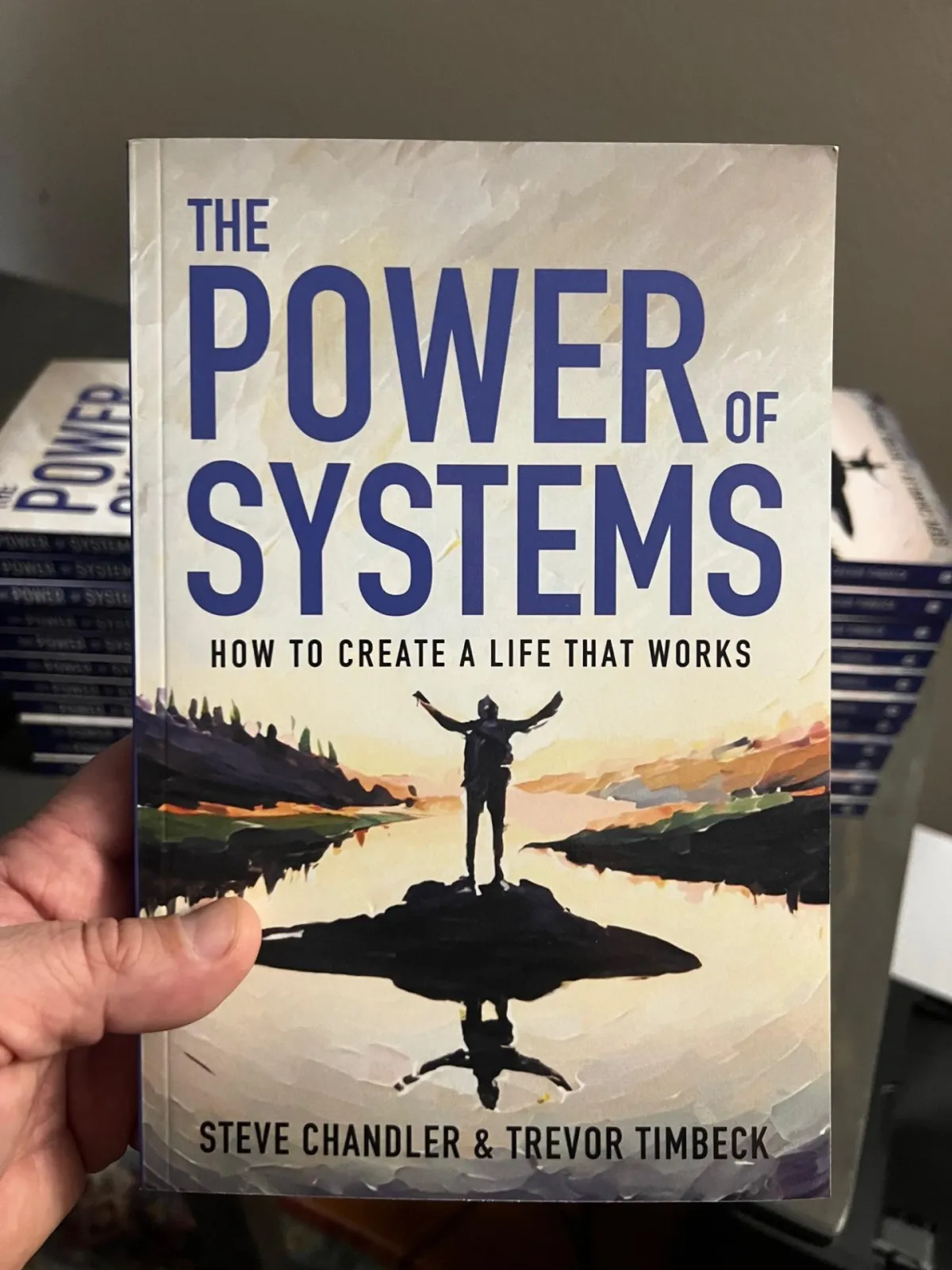
The Power of Systems
This Breakthrough book by The Godfather of Coaching, Steve Chandler and Master Coach, Trevor Timbeck gets you past your "indecision" and "self-doubt" and gets you into action.
This retails on Amazon for $19.95 and you get it here for FREE when you register for the Upgrade Your Life Community NOW.
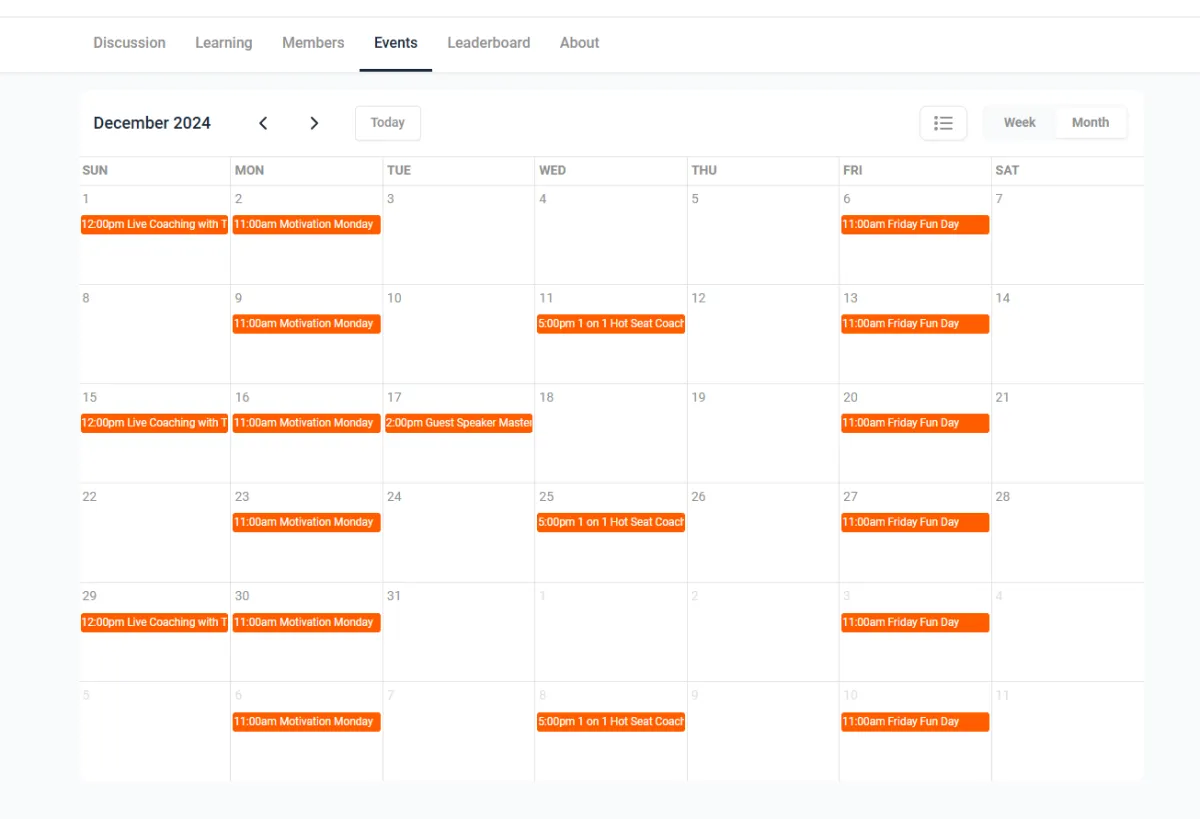
Join any Coaching Session or Masterclass
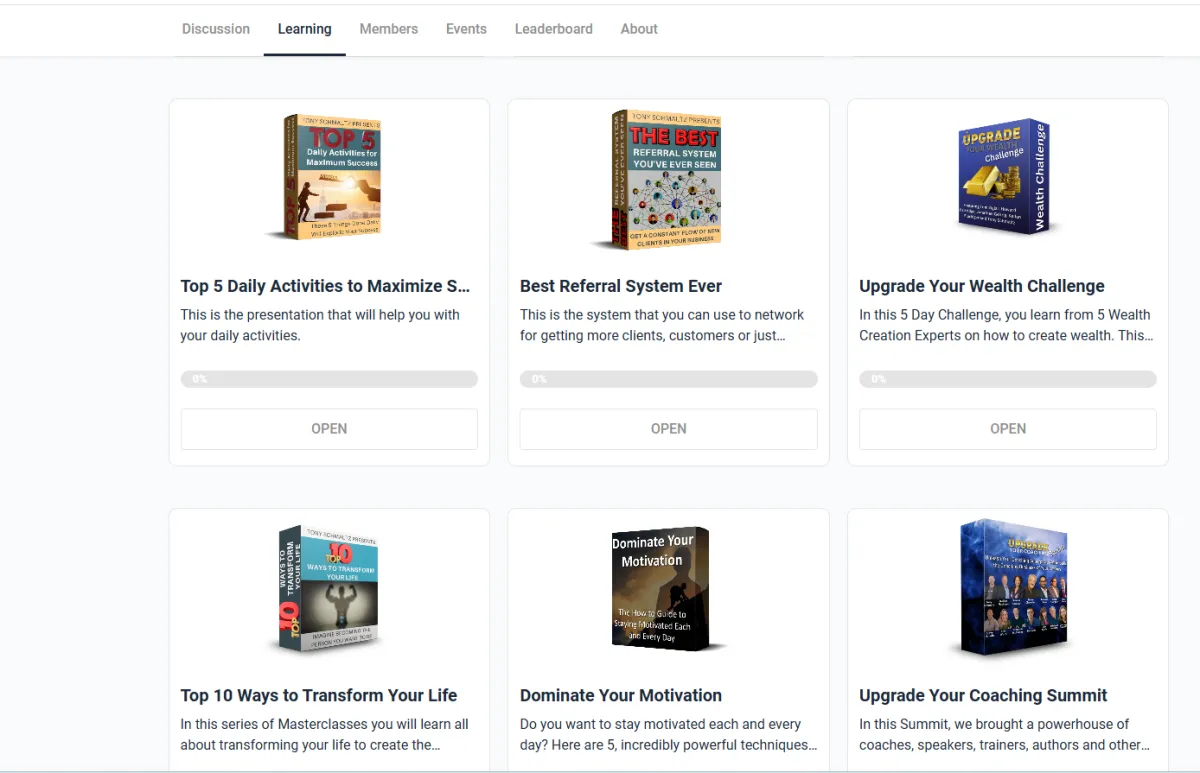
Courses Available
And Included
Here is just a little bit of what you get from this community
Mentorship/Coaching
Live Coaching/Training Sessions Every 2 Weeks
Live Guest Speakers, Trainers, Coaches
Live 1 on 1 Sessions with Community Members
Weekly Motivational Videos
Additional Video Trainings/Masterclasses
All Applicable Documents, Forms and Checklists
Exclusive Access to the Private Community
Access to All Previously Recorded Sessions
And so much more
Courses You Get
Top 10 Ways to Transform Your Life
Top 5 Daily Activities to Maximize Success
Dominate Your Motivation
Success Made Easy
The Best Referral System You've Ever Seen
Upgrade Your Wealth Challenge
Upgrade Your Coaching Summit
Upgrade Your Life (Coming Soon)
And more to come
Summary of Elements
That's at least 8 courses and hours, upon hours of mentorship, training, coaching, videos, motivation and direct time with me, Tony Schmaltz AND other industry leaders.
This is a NO BRAINER for anyone that wants to find the real results they want in their lives.
Don't Just Take Our Word For It...
See What Others Have Said About Their Experience!

"If you are someone who has big dreams and goals, but something has been holding you back from creating success, you should speak with Tony. Not only will he uncover your limiting beliefs and unlock your potential, but he has the marketing knowledge and skills to help you put those dreams into action and start building the life and business you have always wanted."
Lindsay Sewell
Speaker, Coach, Online Marketing Legend

"Tony will wake you up, right from the start! He's an engaging facilitator and did such a great job tailoring this training for our team's needs. This was such an effective time together for our team, changing the way we speak to eachother and our language around expectations since we went through these exercises."
Matt Mclain
Manager, Talent Acquisition - Amazon.com, Inc.
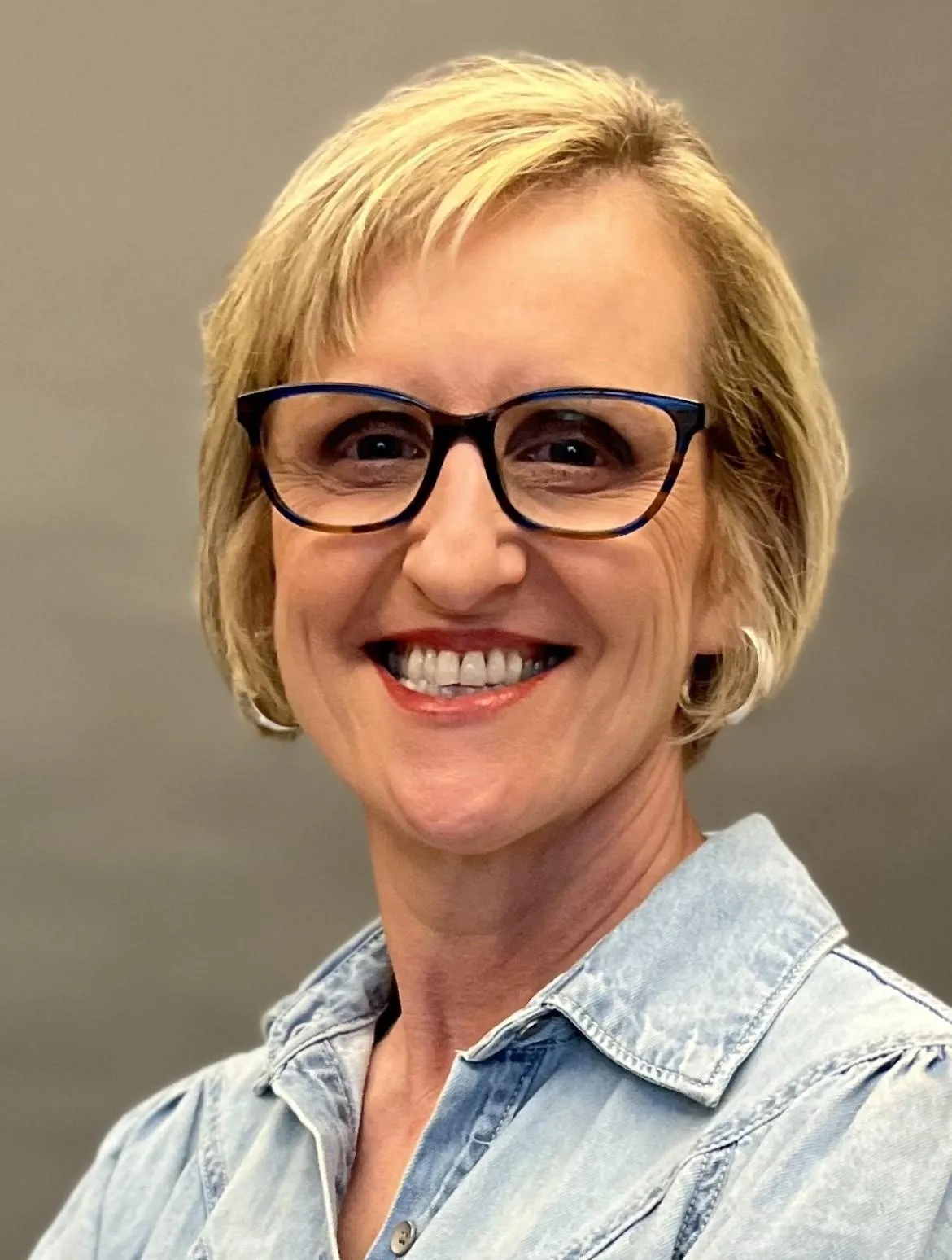
"When I experience Tony, I see Tony Robins 2.0. He is the upgraded version of Tony Robbins, bringing out the best in everyone around him or those that have the privilege of experiencing him"
Matt Mclain
Life Coach and Yoga Master Trainer
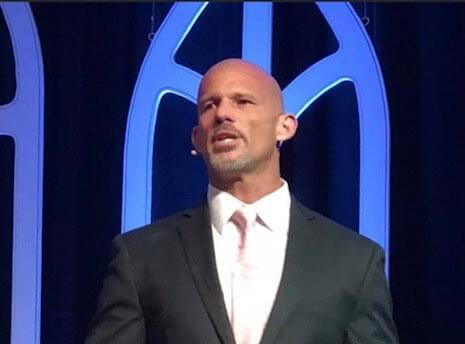
"If you are thinking about working with Tony, it is not about "IF", but "WHEN". When are you ready to step into who you are meant to be and the life you were meant to have. If this is what you want for yourself, then you need to have a conversation with Tony"
Steve Krivda
Coach, Speaker, Author

"I REALLY liked the walkthrough of removing the word “try” from our vocabulary and Tony ignited a fire in me to do better with my life. Making agreements with myself, to improve my day-to-day operations on things I need to accomplish and to better my future self for my career and life."
Matt Grubofski
WWAS TA Central Support - Amazon.com, Inc.
Read This Before
Going ANY Further
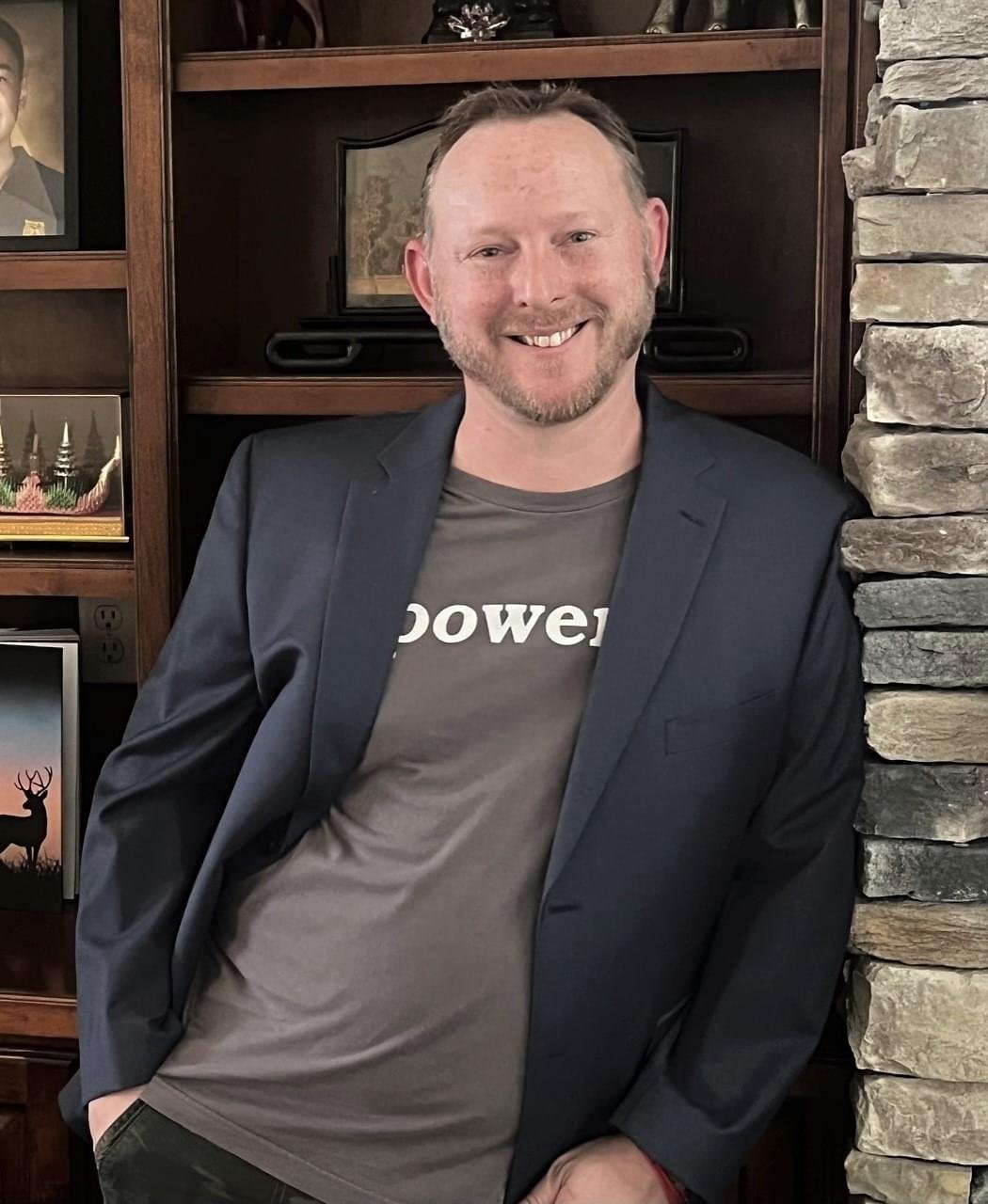
From The Desk Of Tony Schmaltz
Palm Harbor, FL
Dear Motivated Reader,
This program was created to give motivated individuals just like YOU, a low cost opportunity to gain massive results in your life. The cost for most coaches or consultants is FAR out of the reach of the people that need them most, especially in these tough times.
This is THE Community that YOU have been looking for in order to find success.
You get access to several of my courses, video trainings, masterclasses and real-time coaching with me.
Watch your results explode in your business, career, finances and personal life right before your eyes.

what if YOU CREATED MASSIVE RESULTS FROM EVERYTHING YOU TRIED?
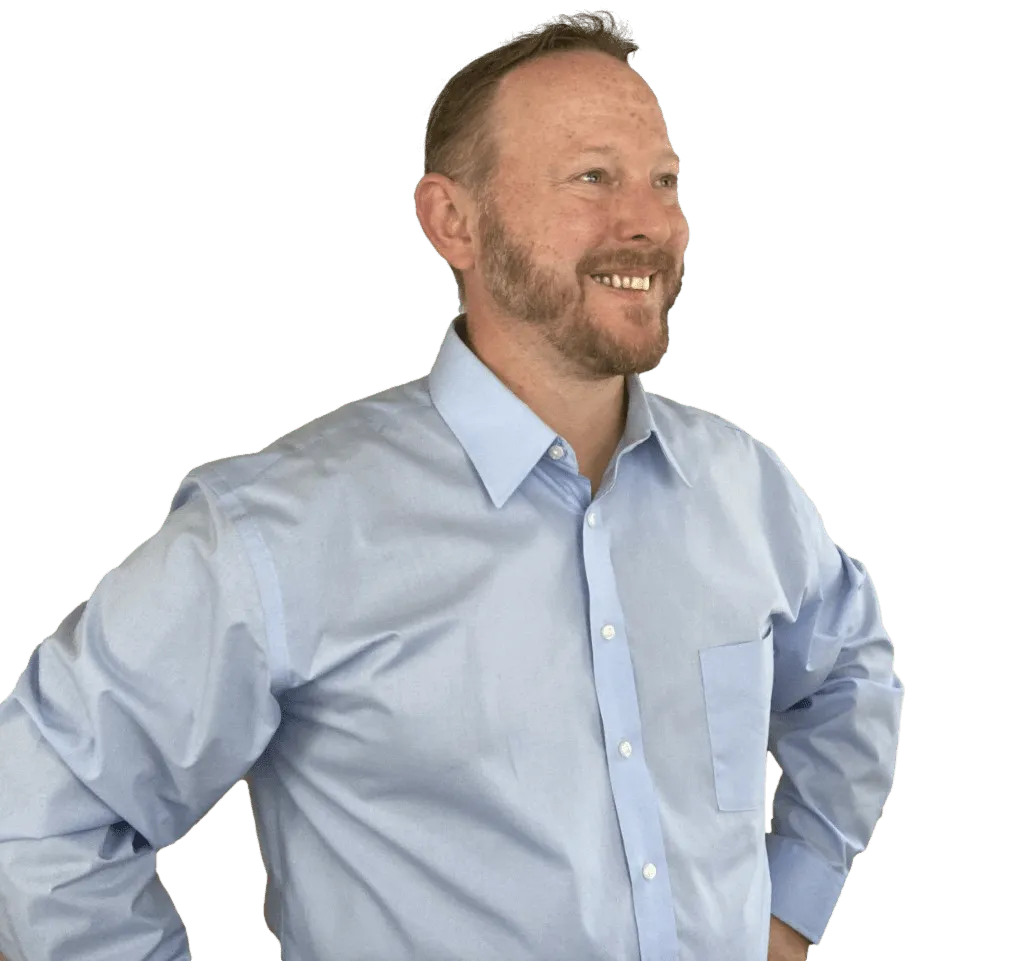
Meet Tony
Coach, Speaker, Author
Personal, Leadership and Business Coach Creating Miracles with Clients
Corporate Leader for more than 20 years
Highly Desired Speaker and Trainer
Digital and Social Media Marketing Expert
Mindset Expert - Specializing in Helping you Overcome Fears, Increase Confidence and Remove Negative Self-Talk
Lovingly know as "The World's Best Belief Coach
This is your defining moment.
The decision is now.